Multiple instances
Desktop JForex4 allows you to run several instances of the platform simultaneously on the same computer. This can be useful when managing multiple accounts or monitoring different markets at the same time.
Windows
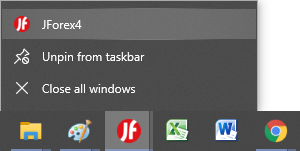
Right-click the JForex4 icon in the Windows 10/11 taskbar and select JForex4 to launch an additional instance.
macOS
On macOS, running multiple instances of the same application requires a simple script. The steps below do not require any technical knowledge.
-
Open Script Editor on your Mac. You can find it quickly by pressing Cmd + Space and searching for "Script Editor".
-
In the empty editing window, paste the following line:
do shell script "open -n"
- Open the Applications folder and locate JForex4. Drag and drop its icon into the script, placing it just before the closing quotation mark. The result should look like this:
do shell script "open -n /Applications/JForex4/JForex4.app"
Note: The path above is an example. Make sure it matches the actual location of JForex4 on your Mac.
-
Press Cmd + K to compile the script.
-
Press Cmd + S to save the file. Enter a name, choose a location, and select Application from the File Format dropdown. Click Save.
You can also download the pre-made script below and update the path in Script Editor:
Once saved, navigate to the file location and double-click the script icon to launch a new instance of JForex4. Repeat as needed for additional instances.