Workspace
Workspace
The JForex4 workspace is a fully customizable trading environment designed to provide traders with all the necessary tools in a single interface. The workspace is divided into several key areas:
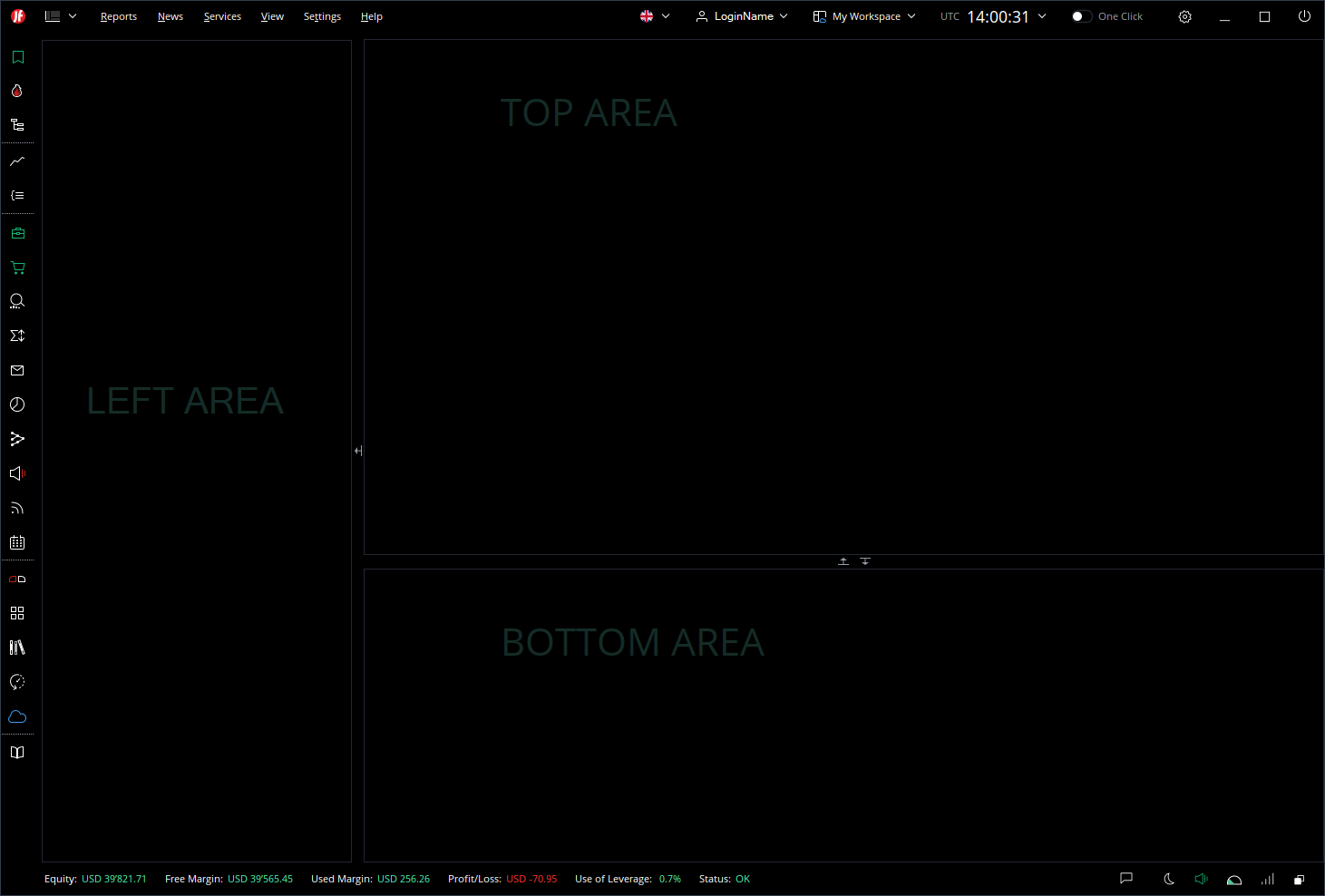
Layout Overview
The workspace consists of the following main areas:
Left Area
Located to the right of the Left Sidebar, this area hosts the following panels:
- New Order — Displays the selected instrument with current Bid and Ask prices, Buy and Sell buttons, order amount and conditions.
- Watchlist — Shows a list of instruments with their current Bid and Ask prices and price changes.
Top Area
The central and largest area of the workspace. It can host multiple panels simultaneously, either as tabbed panels or tiled side by side:
- Chart
- Strategy Editor
Bottom Area
A tabbed panel area at the bottom of the workspace. Like the Top Area, panels here can be tiled, repositioned or detached into floating windows. It contains the following panels:
- Positions — Shows all open positions with details such as instrument, direction, amount, entry price, stop loss, take profit and P/L
- Orders — Displays all pending orders
- Position Summary — Provides a summarized view of all positions
- Messages — Platform notifications and messages
- Strategies — For managing automated trading strategies
- Alerts — For managing price and condition alerts
- Market News — Latest market news feed
- Economic Calendar — Shows upcoming economic events
- Strategy Tester — For backtesting automated trading strategies
Top Menu Bar
Located at the very top of the screen, the Top Menu Bar contains the following items:
- Reports
- News
- Services
- View
- Settings
- Help
- Account Menu
- Workspace Selector
- Time
- One-Click Trading Toggle — Enables or disables one-click order placement
Note: On macOS, the menu is displayed natively in the system menu bar.
Left Sidebar
A vertical panel on the left side of the screen containing quick-access icons for enabling and disabling panels across different workspace areas.
The panels are organized into the following groups:
Panels of the Left Area:
- Watchlist
- Hotlist
- Navigator
Panels of the Top Area:
- Chart
- Strategy Editor
Panels of the Bottom Area:
- Positions
- Orders
- Position Summary
- Messages
- Exposure
- Strategies
- Alerts
- Market News
- Economic Calendar
Separate Panels:
- New Order
- Market Overview
- Historical Data Manager
- Strategy Tester
- JCloud Explorer
- Instruments Manager
Status Bar
Located at the very bottom of the screen, the Status Bar displays key account and connection information:
- Equity
- Free Margin
- Used Margin
- Profit/Loss
- Use of Leverage
- Connection Status — Shows the current connection state of the platform
Docking and Detaching Panels
JForex4 offers flexible panel management through a docking system:
- The Main Window contains all panels by default
- Any panel in the Top Area or Bottom Area can be:
- Tiled — placed side by side within the same area
- Repositioned — moved to the top, right, left or bottom of the area, splitting it into sections
- Detached — removed from the main window and placed in a separate floating window
- Detached panels can be docked into other detached windows, allowing you to create fully customized multi-window trading setups
- Docking is not available in the Left Sidebar area
Toolbars
Most panels have their own toolbar providing quick access to panel-specific tools and settings. Toolbar buttons are customizable and follow the same logic globally across all panels of the same type (e.g. all chart toolbars share the same configuration).
Account Menu
The account menu is located in the Top Menu Bar and displays the currently logged-in username. Clicking on it opens the following options:
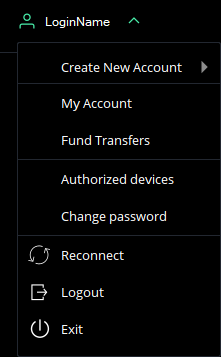
- Create New Account — Create a new trading account:
- Create DEMO trading account — Open a new demo account for practice trading
- Create LIVE trading account — Open a new live trading account
- Create Multi-currency account — Open a new multi-currency trading account
- My Account — Access and manage your account profile and settings
- Fund Transfers — Manage deposits and withdrawals between your accounts
- Authorized Devices — View and manage devices authorized to access your account
- Change Password — Update your account password
- Reconnect — Reconnect to the trading server without logging out
- Logout — Log out of the current account while keeping the platform open
- Exit — Close the platform completely
Workspace Management
The workspace selector is located in the Top Menu Bar and displays the name of the currently active workspace. Clicking on it opens the workspace menu with the following options:
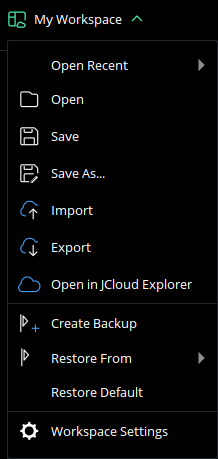
- Open Recent — Quickly access recently used workspaces
- Open — Browse and open a saved workspace file
- Save — Save the current workspace layout
- Save As... — Save the current workspace layout under a new name
- Import — Import a workspace from an external file
- Export — Export the current workspace to an external file
- Open in JCloud Explorer — Access and manage workspaces stored in JCloud
- Create Backup — Create a backup of the current workspace
- Restore From — Restore a previously saved backup of the workspace. Backup files are listed with their date and time stamps and can be opened directly from this menu
- Restore Default — Reset the workspace to its default layout
- Workspace Settings — Open the workspace configuration settings
Workspace Files
JForex4 uses the following files to manage workspaces:
.jfw(JForex Workspace File) — The main workspace file containing the full layout configuration. This is the file that is saved, exported and imported when managing workspaces..jfs(JForex Settings File) — A settings file that stores the path to the currently active workspace. This file is kept both locally and in JCloud, ensuring the correct workspace is loaded on startup regardless of the device used.
A workspace file stores the following settings and preferences:
- List of favorite indicators
- Chart intervals (timeframes) configuration
- Chart themes (colors and visual style)
- Toolbar settings and customizations
Note: Chart objects are saved in the workspace file only when Local chart mode is enabled. For more information, refer to the Chart section of this manual.
JCloud Storage
Workspaces in JForex4 are saved exclusively in JCloud — Dukascopy's cloud storage service. This offers several key advantages over local file storage:
- Safe storage — Your workspace is securely stored in the cloud and is not affected by local hardware failures or accidental file deletion
- Versioning — Previous versions of your workspace are preserved, allowing you to restore an earlier layout whenever needed
- Cross-device access — Your workspace is available on any computer where you log in to JForex4, ensuring a consistent trading environment regardless of the device you use
Backups and Version History
We recommend regularly creating backups of your workspace using the Create Backup option. This ensures you can always restore a known working layout.
-
Manual backups — Created using Create Backup from the workspace menu. They can be accessed and restored at any time via the Restore From submenu, where each backup is listed with its date and time stamp.
-
Automatic versions — When multiple instances of the same account are running simultaneously, the platform automatically creates new versions of the workspace to prevent conflicts. These automatic versions can be found and managed in JCloud Explorer.
Multiple workspaces can be created and saved for different trading setups, allowing you to quickly switch between layouts optimized for different tasks such as trading, analysis or strategy development.
Backward Compatibility
Workspaces created in JForex3 are not compatible with JForex4 due to a completely different workspace structure. JForex3 workspace files cannot be opened or imported into JForex4.
However, chart objects can be exported as chart templates in JForex3 and imported into JForex4, providing a practical solution for migrating chart objects between platforms.